Good morning
| Client | Project | Date | Status | Amount | |
|---|---|---|---|---|---|
No proposals yet | |||||
Proposals
| # | Client | Project | Date | Status | Amount | |
|---|---|---|---|---|---|---|
No proposals yetCreate your first proposal to get started | ||||||
Clients
| Name | Contact | Phone | Tax ID | ||
|---|---|---|---|---|---|
No clients yetAdd your first client to reuse their details | |||||
Templates
No templates yet
Save any proposal as a template to reuse it
Settings
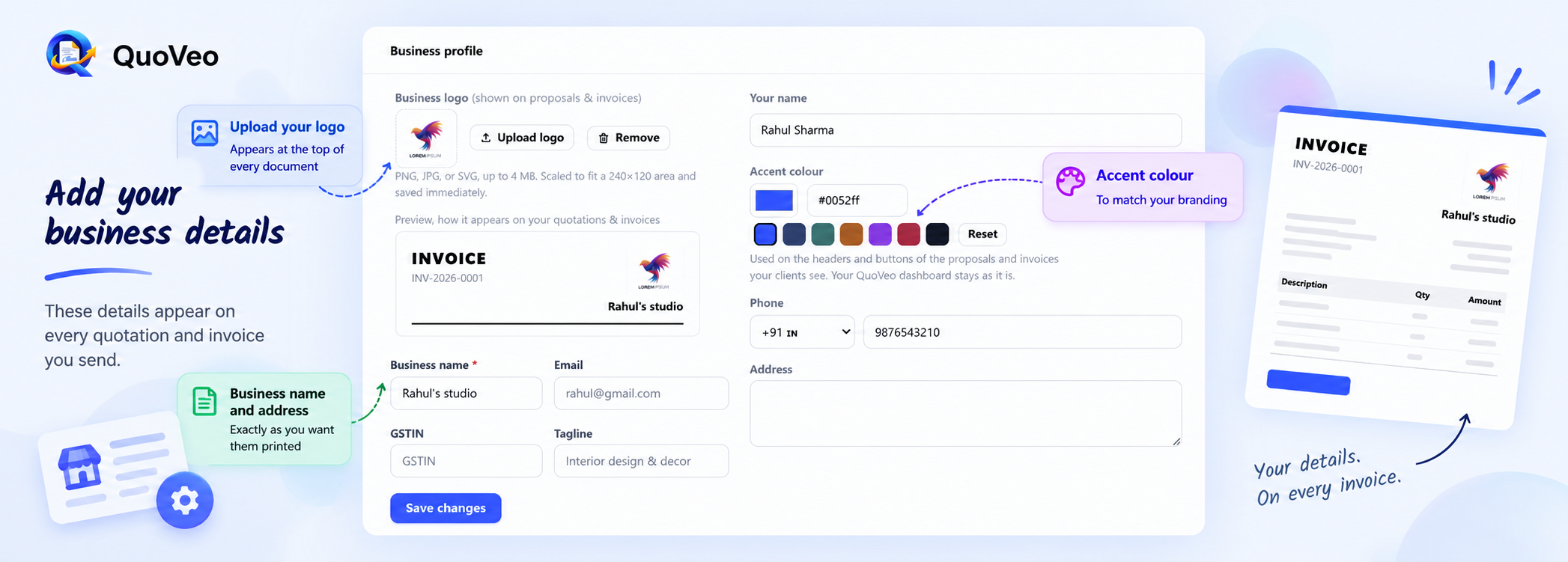
PNG, JPG, or SVG, up to 4 MB. Scaled to fit a 240×120 area and saved immediately.
Used on the headers and buttons of the proposals and invoices your clients see. Your QuoVeo dashboard stays as it is.
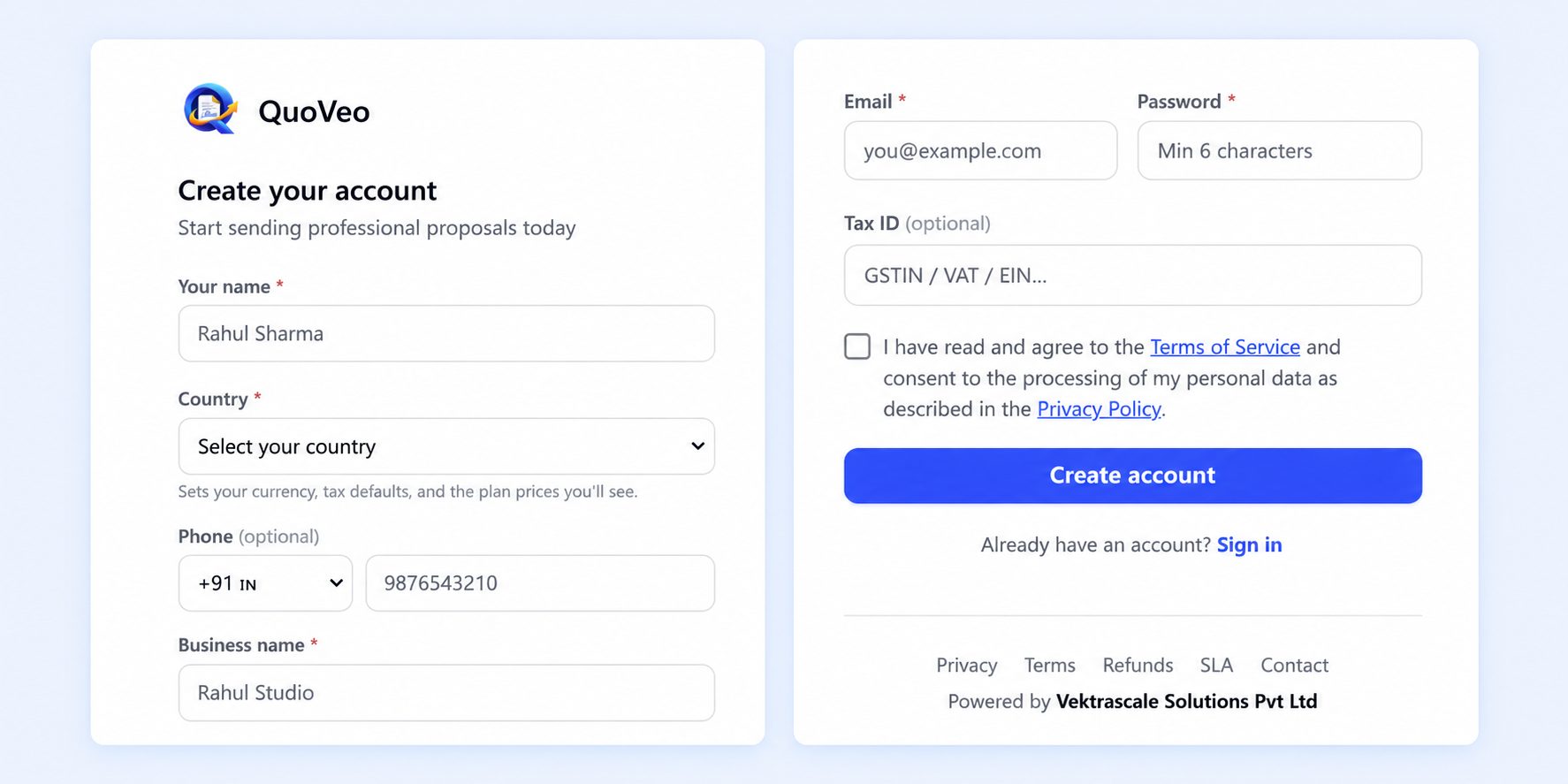
Pick your country to set sensible defaults for currency and tax. These become the defaults on every new proposal, you can still change the currency or tax rate per proposal.
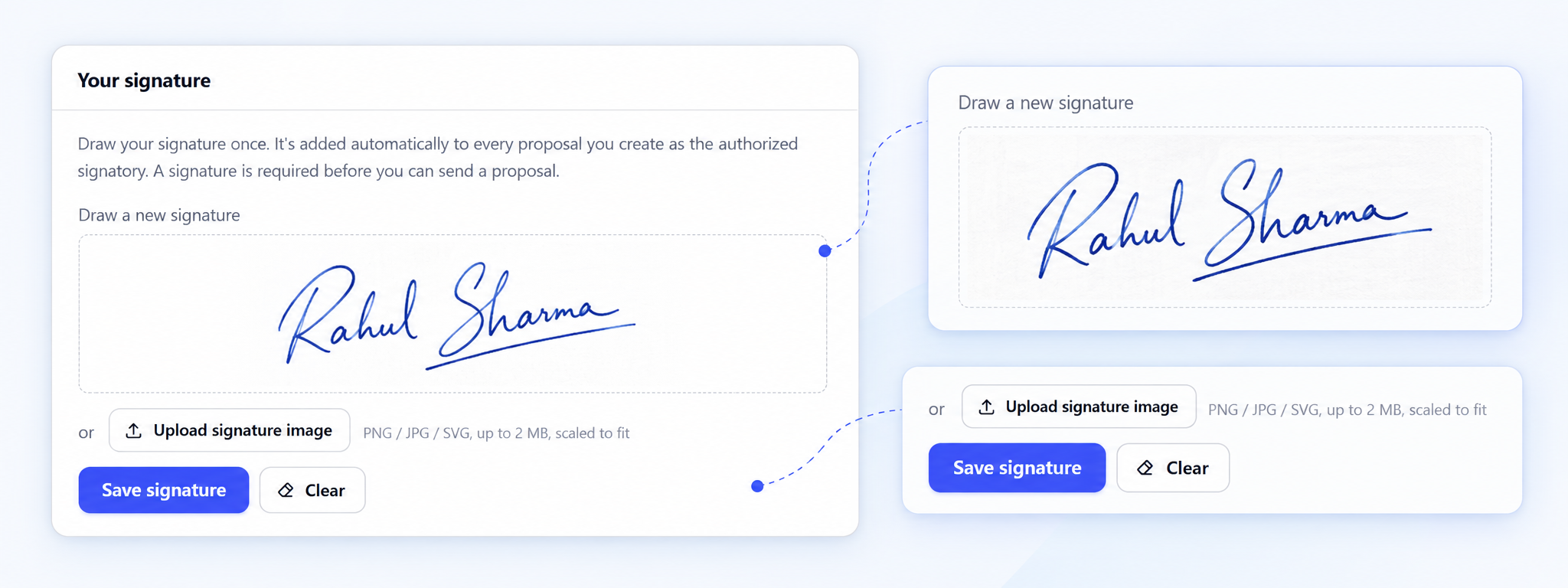
Draw your signature once. It's added automatically to every proposal you create as the authorized signatory. A signature is required before you can send a proposal.
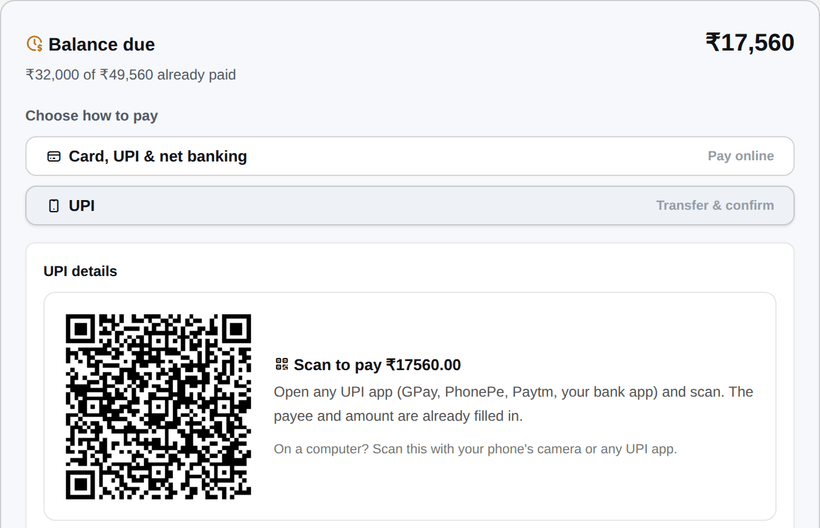
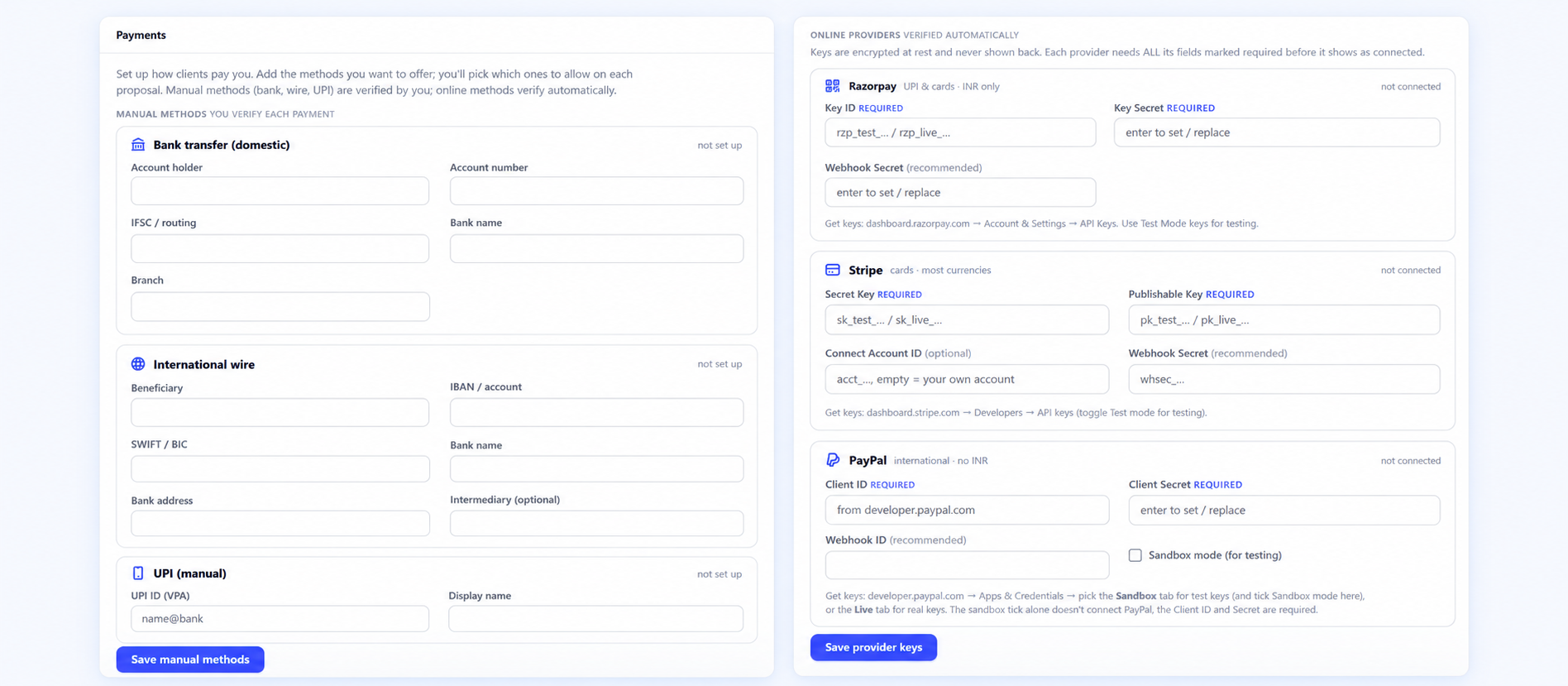
Set up how clients pay you. Add the methods you want to offer; you'll pick which ones to allow on each proposal. Manual methods (bank, wire, UPI) are verified by you; online methods verify automatically.
Keys are encrypted at rest and never shown back. Each provider needs ALL its fields marked required before it shows as connected.
Get keys: dashboard.razorpay.com → Account & Settings → API Keys. Use Test Mode keys for testing.
Get keys: dashboard.stripe.com → Developers → API keys (toggle Test mode for testing).
Get keys: developer.paypal.com → Apps & Credentials → pick the Sandbox tab for test keys (and tick Sandbox mode here), or the Live tab for real keys. The sandbox tick alone doesn't connect PayPal, the Client ID and Secret are required.
Your rights over your own information, in one place. Nothing here is hidden behind a support request.
To correct anything, edit your profile above. Corrections apply immediately.
Everything we do with your data is needed to run the service, so withdrawing consent closes your account. Both options below erase your proposals, clients, templates and payment records permanently, and neither can be undone.
Privacy Policy · Terms of Service · Subscription & Refunds · Service Availability · Contact · Powered by Vektrascale Solutions Pvt Ltd
Send proposals from your own Gmail so clients see your address as the sender and replies come back to you. You'll need a 16-character Google App Password (not your normal Gmail password). Leave both fields blank to keep using the shared sender.
How to get your Gmail App Password (2 minutes)
Step 1, Turn on 2-Step Verification (required; skip if already on)
- Open myaccount.google.com/security and sign in with the Gmail you'll send from.
- Under “How you sign in to Google”, click 2-Step Verification.
- Click Get started and follow the prompts (confirm your password, add your phone, verify the code). When it says “2-Step Verification is on”, you're done.
Step 2, Create the App Password
- Go to myaccount.google.com/apppasswords (this page only appears after 2-Step is on).
- In “App name”, type QuoVeo and click Create.
- Google shows a 16-character code in a yellow box (e.g.
abcd efgh ijkl mnop). Copy it.
Step 3, Paste it below
- Enter your full Gmail address and paste the 16-character code into Gmail App Password (spaces are fine, they're removed automatically).
- Click Save sending email. We'll verify it with Google right away and tell you if anything's off.
Notes: An App Password is different from your login password and only works for sending mail. You can revoke it anytime from the same page. If the App Passwords page says it's unavailable, 2-Step Verification isn't fully enabled yet, finish Step 1 first. If saving reports a timeout, your network may block outbound mail (port 465).
Emails go out from QuoVeo's sending service, with your business name as the sender and your email address as the reply-to, so anything your client replies comes straight to you. Nothing to configure.
Because proposals are delivered through QuoVeo rather than your own mailbox, they won't appear in your Gmail "Sent" folder. Keeping yourself on CC means you still have every proposal in your inbox for your records. You can turn this off, or change it per proposal when sending.
Admin · Users & plans
| User | Plan | Status | Props | Clients | Tpls | Collected | Last active | |
|---|---|---|---|---|---|---|---|---|
Loading users… | ||||||||